
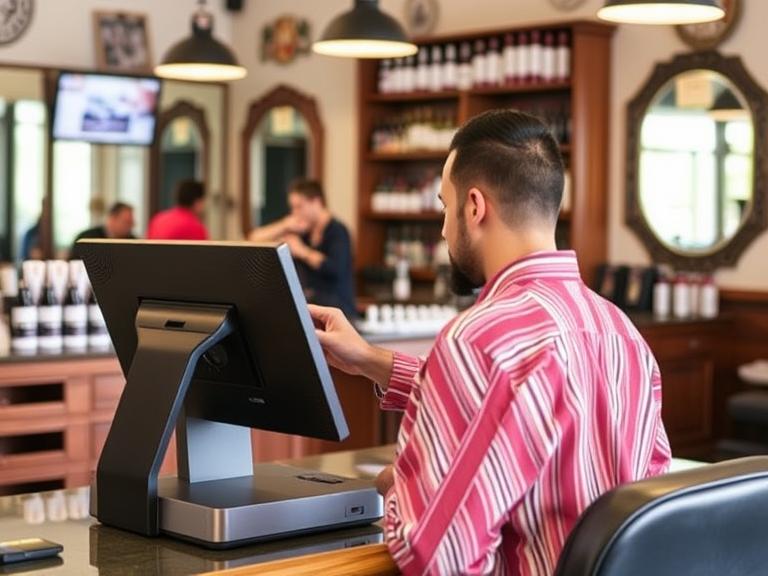
The Importance of POS Systems for Barbershops (And How It Helps You Grow)
Still Running Your Barbershop Without a POS System? You’re Likely Losing Money
Running a barbershop is more than cutting hair. You’ve got customers to manage, payments to track, products to sell, and schedules to juggle. If you’re still using pen and paper or just your phone to handle it all, things probably feel a bit messy. You might be missing out on sales, double-booking clients, or losing track of products.
POS Systems for Barbershops are built to fix that. They help you stay on top of appointments, speed up payments, track every dollar, and manage your team—all from one place. It’s like having a full-time assistant without the extra payroll.
Want fewer headaches, better service, and more money in your pocket? Keep reading.
What Is a POS System for Barbershops?
A POS (Point of Sale) system is a tool that helps you handle payments, appointments, customer info, and inventory. It’s more than a cash register. It’s like a helper that never forgets.
In a barbershop, a POS system can:
- Book and manage appointments
- Accept cash, cards, and mobile payments
- Keep track of what products you have
- Help you see how much money you make
- Track tips and staff work hours
It’s not just for big salons. Even small one-chair shops can use one.
Why Barbershops Need a POS System
Let’s talk real. You’re busy. You’ve got clients walking in, texts flying in for bookings, and someone just asked if you have that pomade they bought last time. Doing it all without help? That’s tough.
Here’s what a POS system can fix:
A. Say Goodbye to No-Shows
People forget. POS systems send reminders automatically. Your customer gets a text or email saying, “Hey, you’ve got a cut at 3 PM.” That means fewer empty chairs.
B. Faster Payments, Happier Clients
No one likes waiting around. With a POS system, customers can tap their card or phone and go. It’s quick, and you can even accept tips right on the screen.
C. Track Every Dollar Easily
How much did you make today? How about last Tuesday? A good POS tells you right away. No guessing. You can check it anytime—even from your phone.
D. Manage Staff Without the Headache
If you have a team, tracking hours and tips can get messy. A POS system handles it. You’ll know who worked when and how much they made.
E. Know What Products Actually Sell
Ever forget to restock a favorite hair gel? POS systems keep count. When you’re low on stock, it’ll let you know.
Key Features to Look For in a Barbershop POS
Not every POS is built for barbershops. Look for one that fits your shop.
A. Appointment Booking Made Easy
Clients can book online. They see your calendar and pick a time. You get fewer calls and no back-and-forth.
B. Secure and Fast Payments
Look for one that works with tap, chip, and mobile payments. Also, it should handle tips and send receipts fast.
C. Staff Management Tools
The system should track hours, tips, and even commissions if you offer them.
D. Inventory Alerts So You Never Run Out
A solid POS tracks your product levels. When you’re low on something, you’ll know before it runs out.
E. Mobile Access—Manage From Anywhere
Need to check in while you’re away? A cloud-based POS lets you check bookings, sales, and staff from your phone.
How POS Systems Help You Make More Money
You’re not just cutting hair—you’re running a business. A POS system helps you do that smarter.
- Upsell Without Trying: Some systems suggest add-ons right during checkout—like beard oil or shampoo.
- Keep Customers Coming Back: You can set up loyalty rewards. Give points for every visit and offer a free cut after 10.
- Know Your Best Days: Reports show what days are busiest. Use that info to run promos or add staff.
- Faster Checkout = More Clients: The quicker you finish with one person, the sooner you can take the next.
Every minute and every dollar count. A POS helps you squeeze the most out of both.
What Happens If You Don’t Use a POS System?
Skipping a POS might feel like saving money, but here’s what it could really cost:
- Lost Appointments: Forgetting bookings or double-scheduling costs money and makes you look bad.
- Money Slips Through the Cracks: Cash gets lost. Tips don’t always get tracked. You’re not seeing the full picture.
- Inventory Messes: You run out of stuff or buy too much. That hits your wallet.
- More Stress: You’re doing all the work your system could be doing for you.
Top POS System Options for Barbershops
Here are some tools that work well in barbershops:
- Square: Easy to use, good for solo barbers or small shops. Has free features and works on phones or tablets.
- Fresha: Built for beauty and wellness. Offers free bookings, and clients can find you through their app.
- Vagaro: Handles bookings, payments, and marketing. Monthly fee but packed with features.
- Booker: Great for busy shops. Handles staff, inventory, and even has email marketing.
- GlossGenius: Clean interface. Good for both beginners and tech-savvy shop owners.
How to Set Up a POS System in Your Barbershop
It’s easier than you think. Here’s how to get started:
- Pick a POS system: Choose one that fits your shop size and needs.
- Add your services: Haircuts, beard trims, coloring—list them all with prices.
- Add staff and hours: Input your team’s schedule and availability.
- Set up payments: Connect your bank and get your card reader.
- Train your team: Show them how to book appointments, take payments, and use reports.
Once it’s in place, it runs things for you while you focus on clients.
Real Barbershop Success Stories
Let’s say a barber named Tony used to write appointments in a notebook. Sometimes he forgot. Sometimes two clients showed up for the same time. Since switching to a POS, that stopped. He says his revenue went up 20% in three months.
Another shop, run by two brothers, started tracking product sales. They found out a $10 pomade was their top seller. Now they push it more—and it sells out faster.
These aren’t rare stories. They’re common once barbers get organized.
Common Myths About POS Systems
“It’s too expensive.” Not true. Many systems are free or start low. You can always upgrade later.
“It’s hard to learn.” Most are built to be simple. You’ll get the hang of it in a day or two.
“I don’t need it yet.” The sooner you start, the smoother things go as your shop grows.
“My clients don’t care.” They actually do. Fast, easy service means better tips and more return visits.
“It’s only for big salons.” Nope. One-chair shops use them too—and love them.
Future of Barbershop Technology
Things are changing. Clients want to book online, pay with their phones, and leave reviews instantly. A good POS helps you keep up with all of that.
In the future, some systems might even link with tools like Google Reviews or Instagram to help attract more clients. That’s not science fiction—it’s already happening.
If you want to stay modern, having the right tools isn’t optional.
Conclusion
You don’t need to guess how much money you made today. You don’t have to worry about double-booking clients. A POS system helps you run your shop the smart way.
If you want less stress, more clients, and better profits, now’s the time to switch. Test one out this week. You’ll see the difference by next week.
👉 Try a free POS system today and give your barbershop the boost it deserves.
FAQs
1. Can a POS system work for walk-ins?
Yes. Many POS tools let you quickly add walk-ins and assign them to available staff.
2. Do I need the internet for it to work?
Most need a connection, but some have offline modes that save data until you’re back online.
3. Is Google connected to any POS systems?
Some tools link to Google so clients can book directly from search results.
4. What happens if I switch systems later?
You can export your data and move it. Most providers offer help with that.
5. How much does a barbershop POS system cost?
Some are free with basic features. Others charge monthly, starting around $20 to $50.
Understanding GDPR Compliance in POS Systems
Why GDPR Compliance Matters for Your POS
If you run a shop, café, or any business that takes payments, you probably use a Point of Sale (POS) system. These systems handle more than just money—they also deal with personal customer details. If your POS isn’t following data protection laws like GDPR, you could get into serious trouble. We’re talking big fines, loss of trust, and even losing your right to process data.
That’s why GDPR compliance in POS systems isn’t just a good idea—it’s a must. Customers expect their information to be safe. A single mistake could hurt your business badly. Knowing how GDPR compliance in POS systems works helps you protect your store, your reputation, and your future. Let’s make sense of it all and help you stay on the safe side.
What is GDPR? (Made Super Simple)
GDPR stands for General Data Protection Regulation. It’s a law from the European Union that tells businesses how to handle personal information. It gives people the right to know what data is collected about them, how it’s used, and who gets to see it.
Even if your business isn’t in Europe, GDPR still matters. If you sell to people in the EU or take bookings from European customers, these rules apply to you too. That includes online sales, phone orders, or even tourists visiting your store.
Here’s what GDPR really wants from businesses:
- Be clear about what data you collect.
- Ask for permission (called “consent”) to use it.
- Keep it safe from hackers and leaks.
- Delete it when it’s no longer needed.
That’s it. It’s about treating people’s personal information with care.
How POS Systems Collect Customer Data
POS systems today don’t just ring up sales. They also collect names, phone numbers, emails, payment info, loyalty details, and sometimes even birth dates.
Let’s say you offer digital receipts or sign people up for loyalty programs. Your POS is now holding personal data. If your system links to marketing tools or stores this info in the cloud, the data moves around even more.
Physical stores and online stores both collect customer data. Whether it’s swiping a card in person or typing in payment info on a screen, that information ends up in your system.
Here’s where things can go wrong:
- A staff member saves data on a USB and loses it.
- A weak password lets someone into your system.
- You share info with a third party who doesn’t follow GDPR.
That’s why POS GDPR compliance isn’t optional.
How GDPR Affects POS Systems
Let’s break it down. GDPR wants every system, including your POS, to follow these rules:
1. Ask Before You Collect: If you’re collecting customer data, you need to ask first. That means a customer must agree before their email is stored or used for marketing.
2. Let People See Their Info: If someone asks what data you have about them, you must show them. That’s called a “data subject access” request.
3. Make It Easy to Delete: Customers can also ask you to delete their data. Your POS should make this easy.
4. Report Data Breaches: If customer data leaks or gets stolen, you must tell the right people within 72 hours. That includes local authorities and the customers themselves.
5. Be Careful Who Has Access: Only give staff access to what they need. Your POS should let you control who can see what.
These aren’t just good ideas—they’re legal requirements.
Key Features to Look For in a GDPR-Compliant POS
You don’t need to be a tech genius to check if your POS system is doing its job. Look for these features:
1. Data Encryption: This scrambles customer data so others can’t read it, even if they get access.
2. Consent Collection Tools: Your POS should ask customers for permission to save or use their data.
3. Role-Based Access: Managers and staff should see different things. Your POS must let you control who can view or edit data.
4. Audit Logs: These are records that show who accessed what and when. Helpful in case something goes wrong.
5. Reporting Options: Your POS should give you reports on data use, access, and storage.
If your POS has these tools, you’re in a good spot. If not, it’s time to talk to your provider.
Real-World Examples: GDPR Violations in Retail & Hospitality
Example 1: Café Chain Got Fined A coffee shop in Europe stored loyalty card data without asking customers. When someone complained, the business couldn’t prove they had asked for permission. Result? A big fine.
Example 2: Hotel Leaked Guest Info A hotel’s old POS system got hacked. Names, phone numbers, and card details were taken. The company didn’t report it fast enough. Another fine—and a huge hit to their reputation.
Both of these could have been avoided with better POS settings and a simple privacy process.
Simple GDPR Compliance Checklist for POS Users
If you can check “yes” to all of these, your POS is likely on the right track:
- Does your POS ask for customer permission before saving personal info?
- Can you delete a customer’s data easily if they request it?
- Do only the right staff members have access to sensitive customer data?
- Is all personal data stored with encryption in your POS system?
- Have you reviewed what customer data you’re collecting and why?
- Can your POS give a quick report if a customer asks what data you have on them?
- Do you know what to do if there’s a data breach or if data gets stolen?
🖨️ Print this checklist. Tape it near your register.
🧠 Use it when training new employees.
✅ It’s simple. It’s fast. And it could save your business from serious trouble.
Tips to Keep Your POS GDPR Compliant Long-Term
1. Keep Your Software Updated: Old versions can have bugs or security gaps. Updates fix that.
2. Train Everyone: Even the weekend staff should know what not to share or store.
3. Clean Up Your Data: Don’t keep data longer than needed. Delete what you don’t use.
4. Pick Trusted POS Vendors: Ask how they handle data, backups, and security. If they won’t give straight answers, look elsewhere.
5. Check Third-Party Apps: If your POS links to tools like email platforms or loyalty software, they need to follow GDPR too.
These steps won’t take much time, but they’ll save you a ton of trouble.
FAQs About POS GDPR Compliance
Q: Is my POS GDPR compliant by default? A: No. Many systems give you tools, but you must turn on the right settings and use them correctly.
Q: I run a small shop. Does GDPR apply to me? A: Yes. GDPR doesn’t care how big your business is. If you handle customer data, the law applies.
Q: How can I delete customer data from my POS? A: It depends on your system. Check your manual or ask your vendor where to find the delete option.
Q: What if I use cloud-based POS software? A: That’s fine—as long as the provider follows GDPR rules. Ask them if they store data in the EU or have agreements that follow EU rules.
Q: What happens if there’s a data breach? A: You must report it within 72 hours to your local authority and possibly to your customers. Your POS should help you spot and respond to breaches quickly.
Conclusion
If your POS system isn’t GDPR compliant, now is the time to fix it. You don’t need to spend a lot of money or hire a legal team. Most changes are small, but they make a big difference.
Start by checking your current system for the features we covered. Ask your provider the hard questions. Train your team. Use our checklist.
People care about their privacy. If you take it seriously, they’ll trust you more. And trust leads to repeat business.
Want peace of mind? Check your POS for POS GDPR compliance today and talk to your provider if something’s missing.
Bonus: Glossary (Made Easy)
GDPR – A European law that protects people’s personal information.
Data Subject Access – When someone asks what data you have about them.
Encryption – A way of hiding data so others can’t read it.
Consent – When someone agrees to let you use their data.
Audit Trail – A log that shows who accessed what and when.
Data Breach – When private data gets out without permission.
Data Minimization – Only collecting what you truly need.
Third-Party Integrations – Tools that link to your POS, like email or loyalty apps.
Visit Our Site for more informational articles: POS Cat
The Importance of Regular POS System Audits: Complete Breakdown
A POS system (point-of-sale system) is basically the computerized cash register that businesses use to take payments, track sales, and manage stock. Think of it like a high-tech cash drawer – it has a card reader, barcode scanner, and screen that rings up sales. The US Small Business Administration explains that POS hardware includes things like the cash drawer, card swipe bar, barcode scanner, and receipt printersba.gov. Together, the hardware and software let a shop or restaurant ring up customers and keep track of each sale. A POS can do more than just record payments. Modern POS systems also connect to inventory, sales reports, and even websites, helping businesses keep everything organized.
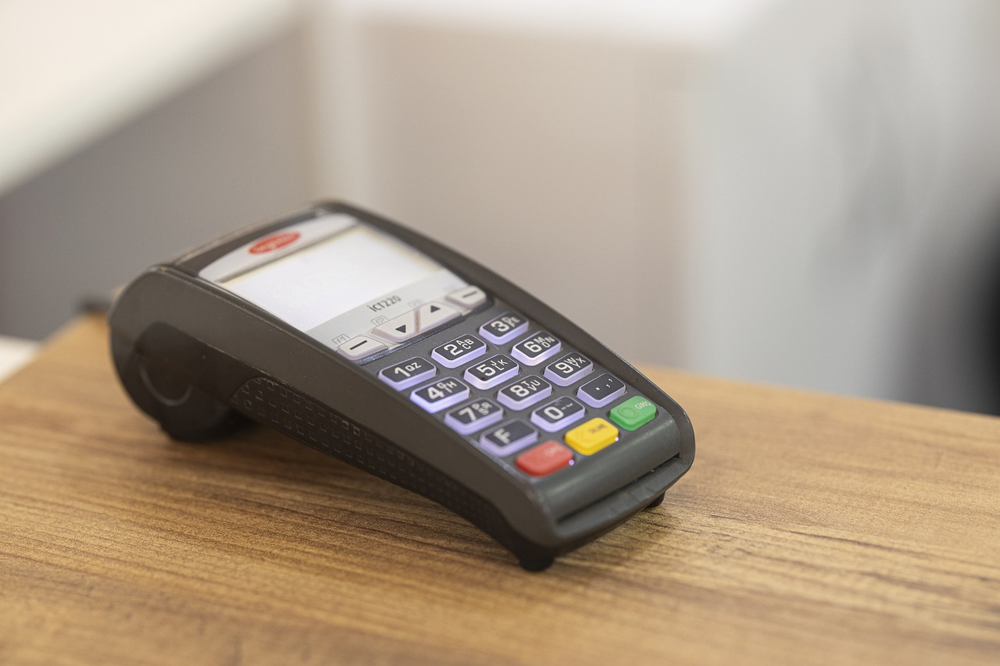
A simple card reader on a counter is an example of a POS terminal. It reads credit cards and is part of a POS setup.
What Is a POS System and What It Does
A POS system is the place where a sale happens – like a digital cash register. It handles scanning items, taking payments, and printing receipts. All businesses that sell products use a POS in one way or anothersba.gov. Even a lemonade stand can use a smartphone app as a mini-POS! More advanced systems include tablets or computers with touchscreens and printers. Whatever the setup, the POS tracks every sale and often connects to other tools. For example, when you scan a product’s barcode, the POS can update the inventory count. When you swipe a credit card, it records the payment. If your printer prints a receipt, the system stores the transaction details. This means the POS is really a hub for sales, cash, and data.
Because of this, businesses of all sizes find POS systems valuable. A store owner can look at sales data to see what’s selling best. A café owner can use it to record daily cash and credit sales. An online shop can connect its e-commerce platform so inventory stays synced with in-store sales. The Small Business Administration notes that a POS is “an important feature for all businesses that sell products”sba.gov. It helps automate tasks that used to be done by hand. For example, a modern POS can automatically keep track of tax rates or loyalty discounts without extra work.
Why Businesses of All Sizes Use POS Systems
Every business needs to sell things and get paid. A POS system makes that process faster and more reliable. Key reasons businesses use POS systems include:
- Speed and Convenience: A POS processes card payments and cash quickly. This means faster checkouts and shorter lines.
- Accurate Records: The POS writes down every sale automatically. This helps business owners know exactly how much they sold each day.
- Inventory Tracking: Many POS systems automatically update stock counts when an item is sold, so you know what’s left on the shelf.
- Reporting and Analysis: POS systems can generate reports. For example, an owner can see which products sold the most, or which day was the busiest.
- Payment Flexibility: They accept credit/debit cards, mobile payments, gift cards, etc., which customers expect these days.
These benefits apply to mom-and-pop shops and big chains alike. In fact, retailers find POS data very valuable. One report found that half of a retailer’s most important data comes from their POS transactions. The data includes things like average sale, best-selling items, and how each cashier is performing. By giving this information, a POS lets small stores compete with larger ones, and helps large chains manage many locations.
In short, a POS system is more than just a fancy register. It is the business’s sales brain. But like any complex system, it needs care and checks. That brings us to audits.
What Can Go Wrong if a POS System Isn’t Regularly Checked
Even a great POS system can cause problems if it isn’t kept in check. Regular audits (simple check-ups of the system) help find mistakes or fraud before they grow. Without audits, businesses often experience issues that hurt sales and trust. Common problems include:
- System Downtime: If the POS breaks or the network goes down, customers can’t check out. One news example is 1800 Target stores that lost about $50 million in sales when their registers stopped working before Father’s Day.
- Missing Sales: Cash might be stolen without anyone knowing. A study shows many retailers have lost money due to unseen problems. For example, one retailer’s manager changed cash sales to $0.01 in the system and pocketed the rest.
- Inventory Errors: The system’s stock count can drift from reality if items aren’t tracked. Over time this causes shelf shortages or surplus.
- Data Entry Mistakes: If prices or taxes are entered wrong, receipts can be wrong. A routine audit in a store once caught a mistake in sales tax calculations that would have led to fines.
- Security Holes: Outdated software can leave the system open to hackers. In fact, security experts say businesses lose about 5% of revenue to fraud each year, and POS terminals are a common attack point.
- Angry Customers: All these issues lead to customer frustration. Long lines, wrong change, or lack of products make shoppers unhappy.
These risks grow if a business “unknowingly falls into common traps” with its POS. One report notes that 60% of retailers have experienced POS downtime, leading to lost sales and unhappy customers. In other words, not checking the POS can mean money flying out the door and customers walking away.
For example, consider a small boutique that never looked at its POS reports. A dishonest employee could quietly issue discounts or refunds to friends. Without an audit trail, the owner would never catch it. Or imagine an ice cream shop that ignores software updates; a data breach could expose customer card details. Both cases show why regular POS check-ups are so important.
Real-World Examples
Concrete examples help show what can go wrong:
- Employee Theft: In one real case, a store manager stole $26,500 by playing the system. She entered cash sales normally, but after customers paid, she went back and changed the sale price to $0.01. Then she would pocket the excess cash. This slipped past day-to-day checks, but an audit of POS reports eventually revealed dozens of altered sales. By the time she was caught, months of theft had occurred. A regular audit report could have spotted the odd $0.01 sales much earlier.
- Register Outages: On June 15, 2019, about 1800 Target stores across the US had a POS system crash for two hours, right before Father’s Day. Registers went offline due to a system error. This hiccup cost the company an estimated $50 million in lost sales, as customers couldn’t pay or had to walk away. It was a clear case of how a POS failure hurt both revenue and customer satisfaction.
- Pricing Errors: A clothing store once discovered through an audit that a sale price had been entered incorrectly. All items on clearance were still ringing up at full price. When the mistake was fixed, customers were happy and the store recovered. If it had stayed undetected, the store could have faced complaints and even lost business.
These stories underline a key point: Audits catch things early. In all these cases, a timely review of POS logs or reports would have flagged the problems. It could be as simple as noticing unusually high voids, or a big drop in average sale price.
For example, a quick look at transaction logs might show one cashier issuing too many refunds, or one product’s price being changed often. That’s where a credit-card terminal (like the one shown above) and its logs become useful. The hand holding the card might be an honest customer – or, if the system is unchecked, it could be a trick. A plain view of sales data tells the truth.
How Often to Audit Your POS and What to Check
How often should a business audit its POS system? The answer depends on size and volume. A busy cafe might look at its sales every day, while a quieter gift shop could check weekly. Here’s a practical guide:
- Daily Checks: At the end of each day or shift, verify that the cash in the drawer matches what the POS reports as cash sales. Check that all credit card sales are recorded. Review any voids, refunds, or discounts for reasonableness. These simple checks catch mistakes (like forgetting to charge for an item) and keep fraud from building up.
- Weekly Reviews: Once a week, reconcile the totals. Compare your POS reports to your bank deposits to make sure all money was turned in. Review any trends (e.g. sudden drop in sales on a day). Check that inventory levels for fast-selling items match up with your stock (see “Inventory Audits” below).
- Monthly Audits: Do a more thorough audit once a month. This can include a cycle count of inventory (see next section), verifying that tax rates in the POS are correct, and checking software updates. Also confirm that the POS software has been updated and that no one has unauthorized access.
- Quarterly or Seasonal Checks: Every few months, do a full system review. Check that all hardware (scanners, printers, terminals) are working properly. Review the user list: make sure former employees’ logins are disabled. Compare this quarter’s sales reports to last year’s; big unexplained changes might need investigation.
- Annual Audit (Tax Time): At year-end, reconcile the entire year’s data. This is when you check if sales taxes collected match what you reported. Make sure inventory records match what you’ll show on your taxes. Some businesses even hire an outside auditor or accountant for this step.
Big chains often do more frequent checks automatically. Some use software that flags unusual transactions in real time. But for most small to mid-size businesses, a disciplined schedule is enough. As one industry blog suggests, “skipping regular report reviews makes it harder to spot trends or catch issues early. Set a consistent schedule – daily, weekly, or by shift – to stay informed and in control.”
Putting this into a quick view, an audit schedule might look like:
| When | What to Do |
|---|---|
| Daily | Count cash, verify end-of-day totals, and check any voids/refunds/discounts for mistakes or fraud. |
| Weekly | Reconcile totals (POS sales vs. bank deposits), spot-check inventory of top sellers, review reports. |
| Monthly | Do cycle inventory counts, ensure software updates are applied, audit user logins and accesses. |
| Quarterly | Inspect hardware, compare sales trends to budget/last year, check tax and price settings. |
| Annually | Full inventory count, end-of-year sales and tax reconciliation, consider an external review. |
Always adapt this to your business. A very small store might skip daily, but it should never skip at least a weekly check. A busy restaurant may need end-of-shift balancing every day. The key is to pick a schedule and stick to it. Remember, a few minutes of checks today can prevent big headaches later.
What Audits Catch: Preventing Loss, Fraud, and Mistakes
Regular POS audits are like insurance for your business profits. They protect against four big troublemakers:
- Unnoticed Cash Loss: By counting drawers and matching to sales reports every day, you make sure no money has gone missing. If a cashier forgot to close out a sale or stole a bit of cash, an audit can catch it before it adds up.
- Employee Fraud: As mentioned, looking at voids and refunds helps spot if one staff member is doing too many of them. A study by ACFE (Association of Certified Fraud Examiners) notes companies lose about 5% of revenue to fraud annually. Since POS is where money enters, it’s often the front line for fraud. Spotting even one unusual pattern (like a bunch of $0.01 sales in the fraud example above) can save thousands.
- Pricing and Tax Errors: Audits ensure prices and taxes are entered correctly. One retail audit found a store had been under-charging sales tax due to a typo. Fixing that quickly saved penalties later. On the sales side, if an item’s price is accidentally set wrong (too high or low), an audit will reveal odd totals.
- Inventory Shrinkage: Many POS audits actually check inventory. By comparing what your shelves show to what the POS says, you fix “shrinkage” (lost or stolen stock). The WashburnPOS guide notes that routine audits often reveal “mismatches between inventory records and actual stock, helping correct shrinkage and overstocking.” In practice, this might mean finding a few missing bottles of wine or extra t-shirts on the shelf.
- Customer Satisfaction: Last but not least, audits protect your reputation. They reduce the chances of ringing up wrong prices or running out of stock. When customers get quick correct service and products they want, they stay happy. In contrast, long lines or errors drive people away. The Target outage shows how technical issues can directly upset customers and cost sales.
How audits help: By regularly reviewing reports and logs, owners catch small issues before they balloon. For example, if a sudden spike in discounts is noticed, the owner can ask why – maybe an expired sale price was accidentally left on. If monthly sales are off, the owner can compare the POS report with credit card statements to find discrepancies. Each of these catches means dollars stay in the business.
Example: A retail guide emphasizes that “fraud is a quiet but costly threat”, and that a POS audit lets retailers “spot irregularities before they balloon into major financial losses.” In one case, a routine check found a cashier who was giving herself unauthorized gift cards. The error could have cost thousands over months, but was stopped early.
In short, a POS audit turns raw data into insight. It safeguards revenue by making sure every penny of sales is accounted for. It also improves accuracy: prices, promotions, and taxes are double-checked so legal and financial records stay correct. Over time, these checks prevent small mistakes from becoming big disasters.
What to Do If Problems Are Found
If an audit uncovers a problem, act quickly and methodically. Here’s a step-by-step guide:
- Identify the Issue: First, be sure you understand what went wrong. Is it a pricing error, a missing item, or a suspicious transaction? Use your POS reports to drill into the details. For example, if the problem is a cash shortfall, see if it occurred at one register or one day.
- Correct Records: Fix the data before it causes more problems. If an item price was wrong, update it in the system. If inventory was off, adjust the count. Make journal entries if needed (with an accountant’s help) to correct your ledgers.
- Address Fraud or Theft: If you suspect theft (like the $0.01 scam above), gather the evidence. Talk to the staff involved. You may need to involve HR, management, or even law enforcement in serious cases. The goal is to stop the fraud and recover losses.
- Update Procedures: Tighten the controls that allowed the error. For example, if discounts were given improperly, restrict who can apply discounts in the POS or require a manager code. If people forgot cash-out procedures, train everyone on the correct steps.
- Communicate: If customers were affected (e.g. wrong price charged), consider apologizing or offering a refund. Transparency builds trust; a simple notice can explain that you discovered an error and are fixing it.
- Monitor After Fix: After correcting the issue, check back soon after to confirm the fix worked. If it was a pricing bug, run a test sale. If it was inventory, count again. Make sure the solution stuck.
Problems found are not the end; they are an opportunity to improve. A good motto is: fix it, then learn from it. Sometimes fix means upgrading your equipment or software version if the old one was bug-prone. Other times it means better record-keeping or cross-checks (like having one person log sales and another verify deposits).
Training Staff to Help with Audits
Your POS system depends on people as well as machines. Well-trained staff are your first line of defense against mistakes and fraud. Make sure your team understands not just how to use the system, but also why audits and controls matter. Here are ways to involve your staff:
- Clear Instructions: Show employees how to properly close a register, count cash, and submit any non-cash payments at the end of a shift. Use simple checklists they can follow. For instance, a cashier’s closing checklist might include “Cash count matches report,” “No unapplied discounts,” and “Drawer is clean.”
- Training on Features: Even a “user-friendly” POS needs training. One POS guide warns that without good training, “employees may struggle with basic functions… leading to more errors“. Teach staff how to handle voids, returns, and discounts correctly. Show them how to read error reports or suspicious alerts, and what to do if something looks wrong.
- Segregate Duties: If possible, separate tasks. For example, the person selling items should not also be the one entering daily totals into your accounting software. This way it’s harder for one person to cover up theft. If one cashier only scans items and another only handles end-of-day reconciliations, errors stand out more easily.
- Ownership and Accountability: Encourage employees to think of the POS as a shared responsibility. Celebrate team wins like a clean audit report or zero discrepancies. Likewise, set a tone that fraud or sloppiness is taken seriously. Sometimes making logs visible (like a weekly report of sales by cashier) reminds everyone their work is being checked.
- Regular Refreshers: Technology and processes change. Have quick periodic training or a short meeting to go over new features or audit findings. For example, if a pricing mistake happened, show the team how to avoid it next time. Regular conversation about the “why” behind audits keeps everyone alert.
Training staff is not a one-time event. Ongoing coaching and communication keeps errors low. When employees feel confident in the system and know that audits protect their jobs as well (by catching real issues early), they become partners in keeping the POS accurate.
How POS Audits Support Inventory, Sales Accuracy, and Tax Records
A well-audited POS does more than catch theft; it keeps the whole business in sync. In particular:
- Inventory Management: Your POS should talk to your stock records. Every sale should reduce inventory count. Audits help ensure these match. For instance, one best practice is cycle counting: checking a portion of inventory regularly instead of doing one big count once a year. A POS with good reporting will highlight fast-selling or often-miscounted items so you know where to look. If audits show certain products always come up short, you can investigate why (theft, scanner error, or wrong receiving).
- Sales Accuracy: Consistent audit reviews mean sales reports reflect real reality. This helps with everything from re-ordering stock to setting sales targets. POS audits will catch a sales entry error (like entering 900 instead of 90) so that daily totals and inventory are correct. When sales are accurate, business decisions are more trustworthy.
- Pricing and Promotions: An audit verifies that discounts and coupons are applied correctly and only when authorized. It also checks that all items are charged at the right price. If a sale price or discount code is expired or entered incorrectly, audit reports can flag it. This prevents revenue leakage (losing money on supposed “deals” that were too big).
- Tax Compliance: POS audits play a key role in tax time. They ensure the POS has used the right tax rates all year. The example of the retailer who nearly undercharged shows how an audit saved them from penalties. When your reports line up, filing sales tax or preparing financial statements is much easier. If the POS logs all transactions correctly, the numbers in your tax forms will be accurate and defensible.
In short, auditing your POS keeps your books and shelves accurate. It closes the loop on sales and stock: every sold item should be recorded and removed from inventory. Every transaction should appear in your profit reports. This way, when it’s time to pay taxes or review profits, the data is solid. As one POS industry analysis says, audits help ensure “price changes, tax rates, and promotions are implemented correctly across every system node. That translates into fewer headaches when reconciling accounts.
Optional Tools and Checklists for Easy Audits
Audits don’t have to be scary or time-consuming. A few tools and a simple checklist can make them quick:
- POS Reports: Most POS software includes reports like end-of-day summary, daily sales by cashier, void/refund report, and inventory movement. Learn to run these with a click. You can often schedule them to email you or export to a spreadsheet automatically.
- Spreadsheets or Software: If your POS is basic, consider using a simple spreadsheet (like Google Sheets or Excel). Create a table to check daily totals against actual deposits. For inventory, you might use a free or paid inventory app that imports data from your POS.
- Mobile Audit Apps: There are audit apps (for phones/tablets) made for retail checks. For example, some apps let you scan products and they instantly compare to the POS count. Others guide you through a step-by-step checklist, taking photos or notes as you go. A quick search on Google for “POS audit app” will show options.
- Checklists: Write down a standard checklist for your business. It might include items like “count cash drawer,” “scan top 10 SKUs,” “review 3 random voids,” “verify last tax rate change date,” etc. Store this checklist near the POS or in a shared document. A printed or digital checklist ensures you don’t forget a step.
- Alerts and Monitoring: If your POS or payment provider allows it, set up alerts. For example, get notified by email if a refund above a certain amount is given, or if the system is offline. These real-time signals act like a mini-audit.
Many POS vendors and consultants offer audit templates or guidance. Even major retailers sometimes share tips online. For a quick start, simply Google “POS audit checklist” and you’ll find forms and examples to adapt. The key is consistency. By using these tools and checklists, an audit becomes routine, not a chore.
Conclusion
In the end, regular POS audits are like routine health check-ups for your business. They cost very little time, but can save you from big problems. By checking that your cash matches your sales, that inventory counts are correct, and that no one is abusing the system, you protect your profits and reputation. Audits help catch errors early – before they turn into missing money, angry customers, or legal trouble.
Every business owner should remember: a watched register never loses money. A simple phrase from one industry expert is: “Regularly evaluating [your] POS system is crucial for identifying areas for improvement. Make POS audits a habit, and your store will be in great shape. Consistent checks mean fewer mistakes, happier customers, and a business that truly adds up at the end of each day.
POS System for Multiple Locations: A Simple Guide for Business Owners
Running more than one store isn’t just about more shelves or staff. It means more moving parts. You’ve got different inventories, different people, and different sales happening at the same time in different places. Without the right setup, it’s easy to lose track of what’s going on.
This is where a good POS system for multiple locations comes in.
What Is a POS System for Multiple Locations?
A POS (point-of-sale) system is what businesses use to handle sales. It tracks products, manages payments, and records customer information. For one store, any basic POS might do. But once your business grows beyond one location, the game changes.
A POS system for multiple locations connects all your stores into one system. That means you can watch over everything from one place—sales, inventory, staff, and more. You don’t need separate systems for each branch. Everything talks to each other.
Why It Matters: Common Problems Without It
If you’re using different systems for each store or even just pen and paper in some cases, you’ve probably felt the stress. Here are a few headaches that come with the wrong setup:
- Inventory Mess: One store runs out of stock while another has too much. You don’t know until it’s too late.
- Sales Confusion: It’s hard to compare how stores are doing. Numbers don’t add up.
- Staff Problems: You can’t manage shifts or see who’s working where without calling each store.
- Reports Take Hours: You spend too much time collecting info manually. Mistakes sneak in.
A multi-location POS fixes these problems by keeping everything in one place.
Must-Have Features in a Multi-Location POS
Not all systems work the same. If you’re running several stores, you’ll need certain features to make things smoother:
1. Central Dashboard
You should be able to check all your stores from one screen. Sales today? Stock levels? Best-selling items? It should all be right there.
2. Real-Time Inventory Updates
When someone buys a product, the system should update instantly—across all stores. That way, no surprises.
3. Price and Tax Settings Per Store
Different cities have different rules. Your POS should let you adjust prices or taxes based on each location.
4. Staff Access Control
Not everyone should see everything. Your cashier shouldn’t have the same access as your manager. A good system lets you set rules.
5. Easy Reports by Store
You should be able to get reports by location, by product, or by time. No need to export things to Excel and do it by hand.
Why It’s Worth It
Using a POS system built for multiple locations isn’t just a fancy upgrade. It helps you:
- Save Time: No more bouncing between systems or stores to get updates.
- Cut Mistakes: Fewer manual entries means fewer errors.
- Know What’s Happening: With clear reports, you know what’s working and what’s not.
- Help Customers Faster: Your staff can find info or check stock quickly.
These things make daily work easier and help your business grow without falling apart.
Who Needs This the Most?
Some businesses can’t do without a solid multi-location POS. If you run any of these, you’ll likely need one:
- Retail Chains: Clothing, electronics, or convenience stores with more than one outlet.
- Restaurants with Branches: Keeping up with menus, orders, and staff across all locations.
- Franchises: You might not own every store, but you still want data from all of them.
- Salons or Clinics: Appointment systems, staff schedules, and products all need to stay in sync.
Picking the Right System
You’ll want a POS that matches how you work. Here’s what to think about:
- Cloud-Based or Not? With a cloud system, you can check your business from your phone or laptop. No need to be in the store.
- Can It Connect to Other Tools? Your POS should work with your accounting software, online shop, and customer tools.
- Is It Simple to Use? Your team shouldn’t need training for weeks. Clear menus and helpful screens are a must.
- Will It Grow With You? If you open more stores later, the POS should handle that.
- Support Matters: When things break, you’ll want quick help.
Some Great Options (2025 Update)
Here are a few POS systems that do well for multiple locations:
1. Square for Retail
- Easy to set up
- Good for small to medium shops
- Great mobile app
2. Lightspeed
- Strong inventory tools
- Cloud-based
- Works well with eCommerce
3. Toast (For Restaurants)
- Made for food service
- Handles tables, tips, and menus
- Has kitchen display features
4. Vend by Lightspeed
- Strong reporting tools
- Works offline too
- Easy to use
Each of these systems offers something a little different. It depends on your business type and size.
Getting Started Without Trouble
Switching to a new POS can feel like a big task, but breaking it into steps helps:
- Make a Plan: Know what you need. List out the stores, staff, and systems involved.
- Get Data Ready: Gather info like products, prices, and staff schedules.
- Train the Team: Walk them through how the new POS works. Keep it simple.
- Test Everything: Try a few sales, check reports, and make sure things show up right.
- Go Live: Switch over once you’re sure. Watch closely for the first few days.
Mistakes to Watch Out For
Many business owners rush this part. Don’t make these errors:
- Skipping Training: Even the best system won’t help if no one knows how to use it.
- Going Cheap Without Checking Reviews: The lowest price might cost you more later.
- Not Asking About Support: If help is slow, your store could lose money.
- Forgetting About Reports: A POS should help you understand your business, not just take payments.
A Real-World Example
Maria owns three clothing stores in different neighborhoods. She used to keep track of sales by calling each manager every night. Inventory was tracked on spreadsheets. Things often got missed.
She switched to a multi-location POS with a cloud dashboard. Now she sees sales, stock, and staff info from one login. Her team knows what’s in stock at all stores. Customers get better service. Maria also has more time to think about the big picture.
Should You Get One?
If you’re running more than one store and want fewer mistakes, faster service, and better control, then yes—it’s worth getting a POS system built for multiple locations.
It saves time and helps your team do their job better. And in the long run, it could help you grow faster and smarter.
FAQs
Q: Can I use the same POS system for more than one shop?
Yes, if the system is built for it. Look for a POS that supports multiple locations with shared data.
Q: What’s the best POS for franchises?
Systems like Lightspeed or Toast (for food businesses) are popular. It depends on what you sell.
Q: Will I need internet at every store?
Cloud systems do need internet, but some also work offline and sync later.
Q: How much does a multi-location POS cost?
Prices vary. Some charge monthly per store. Others have one-time fees. Most start around $50-$150 per month, per location.
Q: Is it hard to switch to a new POS?
It can take some work, but good planning helps. Most providers will help with setup.
Ready to Take Control of All Your Stores?
Running more than one store doesn’t have to be confusing. The right POS system brings everything together, saves time, and helps you stay focused on what really matters—your customers and your business.
Don’t let outdated tools slow you down. Pick a system that grows with you, and get back to running your business with less stress.
POS System Troubleshooting Tips: Easy Fixes You Can Do Today
When your POS system acts up, it can cause a real mess. Sales stop. Customers get annoyed. Staff scramble to fix things without knowing what to do first. That’s why learning a few quick troubleshooting tricks can save you a lot of headaches. This guide will walk you through simple ways to fix common problems, even if you aren’t a tech expert.
You don’t need fancy tools or special skills. You just need a little patience and a simple plan. Let’s get you ready to handle any POS problem with confidence.
Quick First Steps Before Deep Troubleshooting
Before digging around and guessing what’s wrong, you should always do a few quick checks first.
- Look at the power. Is everything plugged in right? Check cords, outlets, and power strips.
- Restart your POS. Many times, turning it off and on fixes small problems.
- Check the internet. If your system runs on Wi-Fi or wired internet, make sure it’s working fine.
- Confirm login details. Staff might be using the wrong password without realizing it.
- Decide when it’s bigger than you. If screens stay black, devices smell funny, or you hear weird sounds, call a pro immediately.
Starting simple can solve a lot more than you think.
Troubleshooting Common POS Hardware Issues
Hardware means the physical parts you can touch, like screens, printers, and card readers. When these pieces act up, here’s how to fix them.
Touchscreen or Monitor Not Responding
Sometimes a screen freezes or won’t react when you touch it. Here’s what you can do:
- Wipe it gently. Dirt, grease, or dust can block touches.
- Check all cables. Loose plugs cause more trouble than broken parts.
- Try a different port. If the cable is good but still not working, use another spot on the device.
- Replace only if needed. If nothing works, it may be time for a new screen.
Receipt Printer Problems
A printer that refuses to work is super annoying, especially with a line of customers waiting. Try these steps:
- Look for paper jams. Open the printer and clear any stuck paper.
- Check if it’s offline. Go into the POS settings and make sure the printer is connected.
- Switch the paper roll. Make sure you’re using the right thermal paper if needed.
- Replace ink if needed. Some printers still use ink ribbons that can run out.
A working printer keeps things moving, so fixing these little issues fast is a huge help.
Card Reader or Payment Terminal Errors
Payment terminals cause panic when they stop working. Fix them fast with these tricks:
- Unplug and plug back in. It sounds simple, but it works a lot.
- Restart the reader. Find the small restart button or hold the power button.
- Clean the chip slot. Dirt inside can make cards fail to read.
Don’t be afraid to swap terminals between counters if one breaks down during busy hours.
Cash Drawer Won’t Open
When cash drawers stick, you might think it’s jammed. Here’s how to fix it:
- Check the cable. It must be plugged into the right spot, often the receipt printer.
- Use the emergency release. Most drawers have a tiny lever under them.
- Check the software settings. The drawer might be set to open only after a sale is finished.
Knowing how to pop open a drawer safely can save your day.
Troubleshooting Common POS Software Issues
Software problems happen inside the system. They don’t always show up right away but can ruin the whole day if left alone.
POS App Freezing or Crashing
Apps crash when they get overloaded or outdated. Here’s how to fix it:
- Update the app. New updates fix old bugs.
- Clear old files. Some apps let you clear cached data, which helps them run faster.
- Reinstall if needed. If nothing else works, delete and reinstall the app.
Running the newest version keeps the system quick and ready.
Login or User Access Problems
Sometimes staff can’t get in, and the panic starts. Fix it by:
- Resetting passwords. Quick and easy fix most of the time.
- Checking user roles. Someone might not have permission for certain actions.
- Checking your subscription. Some systems lock you out when payments fall behind.
Keep a master admin login written down somewhere safe for emergencies.
Pricing or Inventory Display Errors
If items ring up wrong or inventory looks off, don’t panic.
- Sync the database. Press “refresh” or sync on the back office dashboard.
- Double-check settings. Mistakes often happen during price changes or inventory updates.
- Call support if needed. Some problems can only be fixed on the server side.
Fast fixes here keep customers happy and trust high.
Networking and Connectivity Troubles
No network, no sales. Fix internet-based problems fast using these easy checks.
POS System Cannot Connect to Wi-Fi
Wi-Fi issues happen all the time. Fix them with these steps:
- Reconnect to the network. Make sure you’re on the right one.
- Restart the router. Turn it off, wait 30 seconds, then turn it back on.
- Switch to a wired connection. If Wi-Fi keeps dropping, plug into the router with an Ethernet cable.
Stable internet makes a huge difference.
Payment Processing Delays or Failures
When card payments fail, it’s often the payment processor’s fault, not yours.
- Check payment gateway status online. Sometimes their servers crash.
- Look for system-wide outages. If everyone’s down, you can’t fix it yourself.
- Use offline mode. Some POS systems store sales locally and send them later.
Customers care more about getting their stuff than about technical reasons.
Peripheral Devices Troubleshooting
Peripheral devices help with extras like scanning or weighing. When they stop, here’s how you fix them.
- Barcode scanner not working? Clean the lens and recheck the cable.
- Scale not reading correctly? Reset the calibration following the device manual.
- Customer display frozen? Restart it and check for loose wires.
Little fixes for little tools keep the whole store running smooth.
When to Escalate: Knowing When DIY Isn’t Enough
Sometimes trying to fix things yourself will only make it worse. Here’s how you know it’s time to call an expert:
- Strange smells or sounds from any device
- Visible physical damage like cracked screens or broken ports
- Repeated crashes even after basic troubleshooting
- Systems offline for more than 30 minutes
Before calling support, write down:
- What you tried already
- Error messages you saw
- What happened right before the system failed
Good notes help technicians fix your problems faster.
Preventive Maintenance Tips for POS Systems
Fixing things early is always better than fixing things late. Use these simple habits:
- Update software every month. New updates fix security holes and bugs.
- Clean screens and devices weekly. Use a microfiber cloth and a little patience.
- Check cables every month. Look for frayed wires or loose ports.
- Back up your system. Store a copy of important data on a flash drive or cloud service.
A few minutes each week saves you hours of trouble later.
Bonus: Must-Have POS Troubleshooting Kit
Be ready for anything with a small troubleshooting kit at your counter. Here’s what you should have:
- Spare power cables
- USB hubs and extra charging cords
- Flash drive with backup installers and important settings
- List of support phone numbers taped inside a drawer
- A simple printed checklist for common problems and fast fixes
Prepared teams bounce back faster when things go wrong.
Conclusion
POS problems don’t have to shut you down. A few basic checks, a little patience, and knowing when to call for help make a huge difference. Keeping your system healthy and your staff ready gives you a major advantage every day.
FAQs
- What should I do if my POS system is not turning on?
- First, check the power source and connections. If everything seems fine, try rebooting the system or checking for any software updates that may be required.
- How can I fix a slow POS system?
- Try clearing the cache, closing unnecessary apps or programs, and ensuring your system is up to date. If the issue persists, check for any hardware malfunctions.
- My POS system isn’t accepting payments. What can I do?
- Ensure your payment gateway is properly configured, check the connection, and verify that your card reader or terminal is working correctly.
- Why is my POS system freezing during transactions?
- Freezing can be caused by software bugs or hardware issues. Try restarting the system, checking for software updates, or reinstalling the POS software if necessary.
- How can I resolve an inaccurate sales report in my POS system?
- Double-check the settings, ensure proper data entry, and look for any possible updates or bugs in your POS software that might affect reporting accuracy.
Connecting Your POS with Other Tools: The Simple Way to Save Time and Avoid Mistakes
Running a business takes a lot. You sell stuff, talk to customers, track what you have in stock, and keep an eye on your money. Your POS system helps with some of that—but if it’s not connected to your other tools, you’re probably wasting time and doing extra work.
This article shows you how to make your POS system work better by linking it with your other tools. No tricky words. No confusing tech talk. Just simple steps and real help.
What Is a POS and Why Does It Matter If It’s Connected?
A POS (Point of Sale) system is what you use to sell things to your customers. It’s usually a machine, app, or software that lets you scan items, take payments, and print receipts.
But here’s the thing: Most business owners use more than just a POS. You probably use other tools too—like one for tracking inventory, one for accounting, one for your website, and maybe one for customer info. If those tools don’t talk to each other, you’re stuck doing everything twice.
Connecting your POS to those tools means you only enter things once. It also helps your business run faster and with fewer mistakes.
Why Connecting Your POS to Other Tools Makes Life Easier
Let’s say you sell a pair of shoes in your store.
- Your POS sees the sale.
- But does your stock count go down?
- Does your website update so you don’t sell it again online?
- Is the sale recorded in your books?
If your systems are connected, all of that happens automatically. No extra work. No guesswork.
Benefits include:
- Fewer mistakes: Everything updates at once.
- Faster reports: You can see your sales, stock, and income in real time.
- Better customer service: Your staff can check past orders or offer rewards easily.
- Less stress: You won’t need to fix errors every day.
Tools You Can Connect to Your POS
Here are the main tools that can work with your POS:
- Inventory Management
- Tracks what you have and what’s low.
- After each sale, your stock updates automatically.
- Accounting Software
- Like QuickBooks or Xero.
- Tracks your money and helps with taxes.
- Sales info moves from your POS to your books without retyping.
- Customer Info Tools (CRM)
- Saves names, emails, and buying habits.
- Helps you send birthday offers or thank-you messages.
- Online Stores
- Like Shopify or WooCommerce.
- Makes sure your online and in-store stock are the same.
- Payment and Rewards Apps
- Helps with gift cards, coupons, and different ways to pay.
- Makes checkout smoother.
- ERP Tools (for big businesses)
- Puts sales, stock, staff, and money all in one place.
How Can You Connect Them?
There are a few easy ways to make your POS work with other tools:
- Built-In Options
- Some POS systems already connect with popular tools.
- You just go into the settings and turn them on.
- Helper Apps (like Zapier)
- These pass info between apps.
- They’re like little messengers that link your tools together.
- Custom Work
- If your tools don’t work together, a tech person can build a special connection.
- Costs more, but sometimes it’s the only way.
Steps to Get Started
- Make a List
- Write down every tool you use: POS, stock tracker, accounting, website, etc.
- Check Your POS Settings
- Look for “integrations” or “connections.”
- See what tools your POS already supports.
- Ask for Help If Needed
- Contact your POS company and ask, “Can I link this to my accounting tool?”
- Use a Third-Party App If Needed
- Look at tools like Zapier or Pabbly. They can help connect apps that don’t work together yet.
- Test It Out
- Make a sale. See if it updates in your other tools.
- Fix anything that doesn’t work right away.
- Teach Your Team
- Show your staff what’s new and how to use it.
Things to Watch For
Connecting tools can save time, but it’s not always perfect. Watch out for:
- Outdated Software: Some old systems can’t connect with anything.
- Bad Connections: Sometimes data doesn’t go through right.
- Extra Costs: Some tools charge to connect with others.
- No Support: If something breaks, you need a company that helps you fix it.
How This Helped Real Businesses
- A coffee shop used to type daily sales into QuickBooks. After connecting their POS, they saved hours each week.
- A fashion store’s website always had the wrong stock. Once they linked their POS, online orders became smoother.
- A local bookstore started tracking loyal customers and offering rewards automatically. That boosted repeat sales.
Best POS Systems That Connect Easily
- Square: Great for small shops. Works with lots of apps.
- Shopify POS: Best for people who also sell online.
- Lightspeed: Good for restaurants and retail.
- Toast: Perfect for food businesses.
Before picking one, always check if it works with the tools you already use.
Common Questions
- Can I connect my old POS? Maybe. But some systems are too old. Ask your provider.
- Will this cost a lot? Some connections are free. Others cost money or need custom work.
- Is it safe? Yes—if you use trusted platforms and keep your logins secure.
Final Tip and Call to Action
If your POS is working on its own, now’s a good time to change that. Start with one connection—maybe your accounting tool or your inventory system. Once that works, keep going.
You’ve got enough to do already. Let your tools do more so you can focus on growing your business.
Need help choosing the right tools? Send us a message. We’re happy to walk you through it.
10 Hidden Costs of POS Systems (And How POS Cat Saves You Money)
When people buy a POS system, most of them focus on the price tag. They look at the upfront cost, maybe the monthly plan, and feel like they’ve made a smart choice. But the truth is, that’s only half the picture.
What you don’t see at first are the small fees that come later. These fees might look harmless on their own, but added up, they can turn into a real problem. Some businesses lose thousands each year and don’t even realize where the money is going.
If you’re thinking about getting a POS system or switching to a new one, this article will show you exactly what to watch out for. It’ll also explain how POS Cat helps you skip all that mess and keeps your money where it belongs — in your business.
What “Total Cost” Actually Means
A lot of companies sell POS systems like they’re just a one-time thing. Pay once, and you’re set.
But that’s not how it works.
There’s a thing called “Total Cost of Ownership.” This is the actual amount you end up spending from day one until the day you stop using the system. It includes not just the price of the machine or software, but everything else — monthly fees, hardware repairs, support charges, upgrades, and more.
Ignoring this number is how businesses end up surprised later.
Hardware Costs That Sneak Up on You
You bought the POS device. Great. But six months later, the screen starts freezing. A year later, the receipt printer dies. You call support, and they say you need to buy new hardware — and it’s not cheap.
With most providers, you’re stuck. Repairs are your responsibility. Some even make you upgrade your devices every two or three years just to keep using their software.
How POS Cat Helps:
POS Cat uses cloud-based tools that work on common hardware, like tablets or phones. If something breaks, you can replace it cheaply. No forced upgrades. No lock-ins.
Monthly Fees With Surprise Add-Ons
The monthly plan looked fine when you signed up. But now you notice extra charges. There’s a fee for analytics. Another for staff logins. Another one for support. What’s going on?
This is common. Some POS companies advertise a low monthly fee, then add charges later when you want more features.
How POS Cat Helps:
The price you see is the price you pay. POS Cat gives you everything upfront — the tools you need without stacking on extra fees later. No guessing games.
Setup and Installation Charges
You’d think setting up a POS system would be included in the service. For many providers, it’s not. They charge you to install the hardware, train your team, and connect it to your other systems. Some even bill you just to send someone to your shop.
How POS Cat Helps:
POS Cat gives you a simple setup you can do yourself. If you need help, their team walks you through it — for free. No technician fees, no extra payments.
Transaction Fees That Add Up Fast
This one hits you slowly. Every time someone swipes a card, your POS system takes a small cut. It might seem tiny — a few cents here and there — but over hundreds or thousands of sales, it turns into a big dent in your earnings.
Even worse, some providers hide this rate until after you sign up.
How POS Cat Helps:
POS Cat works with payment processors that keep fees low and transparent. You see the rates upfront, and you’re free to choose the best option for your business.
Locked Features That Cost Extra
Want to track your best-selling items? That’s an extra $20 a month. Need time clock access for staff? Another $10. Want to export your sales report to Excel? You guessed it — more fees.
What’s advertised as “full access” often turns out to be a half-finished system unless you pay more.
How POS Cat Helps:
You get the tools you actually need from day one. Sales tracking, staff management, customer data, and reporting — it’s all included. No upgrades required just to make it usable.
Third-Party Software Charges
Most businesses use more than just a POS. They need accounting software, payroll tools, maybe an inventory tracker. Here’s the catch: many POS providers charge extra to connect to those tools.
Sometimes they force you to use only the apps they approve. Other times, they charge “integration fees” just to allow data to sync.
How POS Cat Helps:
POS Cat connects with popular tools without charging extra. You don’t need to hire a developer or pay for plug-ins. It just works, out of the box.
Slow Support Means Lost Sales
Picture this: It’s a busy day. Your POS system crashes. You try to reach support — nothing. Maybe they only work weekdays. Maybe they ask you to wait 48 hours.
Every minute you wait, you lose sales.
How POS Cat Helps:
Support is available when you need it — not when it’s convenient for them. Whether it’s Monday morning or Saturday night, you get real answers fast. That means no missed sales, no angry customers, and no wasted time.
Cloud Storage and Backup Fees
Some POS systems charge extra just to save your sales data. Others charge for backups or charge you to access your own history past a certain number of days. It’s your data — and you’re paying to get it back.
How POS Cat Helps:
You get automatic backups at no extra cost. Your data is stored safely, and you can view your history anytime. No hidden limits, no extra fees, no surprises.
Training New Employees
Every time you hire someone new, you need to train them on the POS system. Some companies charge for training materials. Some even charge a per-user fee to add new staff.
So your cost grows with every hire — even if they’re temporary.
How POS Cat Helps:
The system is easy enough for anyone to learn in minutes. You don’t need expensive training sessions. Plus, there are free video guides and articles to help if someone needs a refresher.
Long-Term Contracts That Trap You
At first, the deal seems good. But then, you realize you’re locked into a 3-year contract. Want to switch? You’ll have to pay a penalty — sometimes a full year’s worth of fees just to cancel.
Some POS companies make it hard on purpose. They don’t want you to leave.
How POS Cat Helps:
POS Cat gives you flexible plans. If you’re not happy, you can stop anytime. There’s no catch. No penalties. Just good service that makes you want to stay.
Let’s Look at the Real Numbers
Let’s say you run a small restaurant or store. Here’s a quick look at what hidden fees could cost you over a year with a typical POS:
| Hidden Cost | Average Annual Expense |
|---|---|
| Hardware repairs | $300 |
| Add-on features | $480 |
| Setup fees | $150 |
| Transaction fees | $1,200 |
| Training & support | $400 |
| Integration fees | $240 |
| Total Extra Cost | $2,770/year |
That’s almost $3,000 just slipping away — money you could’ve used to grow your business, pay staff, or save for new equipment.
With POS Cat, these costs don’t exist. What you see is what you pay.
A Quick Story From a Real Business Owner
John runs a small café in Florida. He used to pay for a fancy POS system from a well-known company. At first, everything seemed fine. But after a few months, he noticed the bills creeping up. Support was slow. Hardware broke often. He paid extra just to get his reports each month.
He switched to POS Cat.
No setup fee. No extra charges. His team picked it up in a day. Within a month, he saved enough to buy a new coffee machine. “I didn’t think it would make that much difference,” he said. “But the savings are real.”
What You Should Really Look For in a POS System
Before picking a POS, ask these simple questions:
- Are all features included, or will I need to upgrade later?
- Are there any long-term contracts?
- Do I pay extra for support or setup?
- Can I use my own hardware?
- How much will I lose in transaction fees?
- What happens if I want to leave?
If a company can’t answer clearly, that’s a red flag.
The Bottom Line: Don’t Get Tricked Into Paying More
Most POS systems don’t show you the full cost. They lure you in with a low price, then stack on fees until you’re paying way more than expected. That’s how they make their money — not from helping you, but from squeezing every last coin.
POS Cat does things differently.
You get all the important features from the start. No random fees. No confusing contracts. Just a POS that works, saves you money, and helps you run your business better.
✅ Ready to Stop Overpaying?
Don’t let another month go by losing money on a system that’s not helping you.
👉 Click here to try POS Cat — no hidden fees, no contracts, just smart tools for smart businesses.
You work hard. Your POS should work just as hard without charging you for every click.

Identifying Your CCTV Camera ID: A Comprehensive Guide
CCTV cameras are everywhere—at homes, in offices, and even on street corners. But what happens when you need to connect one to an app, set it up for remote viewing, or fix a problem? You’ll likely need something called a Camera ID. It sounds technical, but it’s not as complicated as it seems. In this guide, we’ll walk through everything in simple steps. You’ll learn what a camera ID is, how to find it, and what to do with it.
Let’s keep it clear, direct, and easy to follow.
What Is a CCTV Camera ID?
Every CCTV camera has a unique number or code. Think of it like your camera’s fingerprint. No two cameras share the same one. This code can show up as:
- UID (short for Unique ID)
- Serial number
- MAC address
- Model number
These aren’t all the same thing, but they each help identify your camera in different ways. When someone says “camera ID,” they usually mean one of these. Depending on your system, it could be just the UID or a mix of a few.
Why Do You Need the Camera ID?
You might need the ID when:
- Adding the camera to a mobile app
- Setting it up on a new Wi-Fi
- Connecting it to a DVR or NVR
- Asking for help from support
- Updating firmware
- Resetting or reinstalling the camera
If you can’t find the ID, these tasks get tricky fast. That’s why knowing where and how to find it is important.
Different Types of Camera IDs (And What They Mean)
Let’s break down what each one does in plain terms:
1. UID (Unique ID)
This is often used for remote access. You type this into an app and connect to your camera without typing an IP address. It’s often a mix of letters and numbers, usually 8 to 20 characters long.
2. MAC Address
This looks like a bunch of letters and numbers grouped with colons (e.g., 34:AB:92:1F:9D:7A). It’s like the name your camera uses on a network. Every internet-connected device has one.
3. Serial Number
You’ll see this on a label, often under or behind the camera. It’s used to identify the product for updates or tech support.
4. Model Number
This tells you what version of the camera you have, like “DS-2CD2142FWD-I.” It helps when you’re searching online for instructions or software.
Where to Find Your CCTV Camera ID
Here’s the good news—you don’t need to be a tech wizard. The ID is usually easy to find once you know where to look. Let’s go through the different places step by step.
1. Check the Label on the Camera
This is the most common and quickest way.
- Look at the back, bottom, or side of the camera.
- The label might be printed directly or stuck on.
- It will show the UID, serial number, model, and sometimes even the MAC address.
📝 Pro tip: Take a picture of the label so you don’t have to keep checking later.
2. Look in the Camera’s Settings
If the label is scratched off or missing, no worries. You can find the ID in the camera’s settings:
- Open the camera’s mobile app or access it through a browser.
- Go to the “Device Info” or “About” section.
- You’ll see the UID or serial number there.
Some brands even have a QR code you can scan to get the info.
3. Use the DVR or NVR
If your camera is connected to a DVR or NVR system, the ID can usually be found from there.
- Use your mouse and screen to open the DVR’s main menu.
- Go to “Device Settings,” “Channel Settings,” or “Camera Info.”
- Select the camera you want, and the ID will show up.
This works for both wired and wireless systems.
4. Check the Mobile App
If your camera is already added to an app like Hik-Connect, iVMS, V380, or CamHi, the UID is usually listed in the device details.
- Tap on the camera in your app.
- Go to “Settings” or “More Info.”
- Look for UID, Serial, or MAC address.
Some apps let you copy the ID with a single tap.
5. Scan Your Network
Let’s say your camera isn’t showing up anywhere else. You can use your phone or computer to scan the Wi-Fi network.
Tools you can use:
- Fing (mobile app)
- Advanced IP Scanner (for Windows)
- Angry IP Scanner (for Mac/Linux)
These tools show all devices on your network and their MAC addresses. You’ll see the camera listed with its IP and name.
How to Use Your Camera ID
Now that you’ve got the ID, what next? Here’s where it comes in handy:
Connect to a Mobile App
Most apps ask for the UID when you add a new camera. Once added, you can watch live video, get alerts, or talk through two-way audio (if your cam has that).
Remote Viewing
You can watch your camera from anywhere if it’s linked to a cloud account. You just need the UID, a username, and a password.
Firmware Updates
Some manufacturers ask for your serial number or model number before giving you the right firmware file.
Adding to Software
If you use third-party software like Blue Iris or iSpy, you may need the MAC address or UID.
What to Do If the Camera ID Is Missing or Not Working
Sometimes things go wrong. The label is gone, the app won’t show anything, or the camera just won’t connect. Don’t panic—here’s what to try.
1. Try a Network Scan
As mentioned earlier, use Fing or a similar tool to find the camera on your network. It may be listed under its brand name or a random code.
2. Log in Through IP Address
Use a browser to go to the camera’s IP address (found from the scan). You can usually log in and get the UID or serial number from the settings.
3. Reset the Camera
There’s often a tiny button you can press with a paperclip. Hold it down for 10–15 seconds to reset the camera to factory settings.
Then re-add it to your app, and it should show the UID again.
4. Contact Support
If all else fails, contact the brand’s customer support. Have your model number ready. They can often look up your serial number or tell you where to find it.
Keeping Your Camera ID Safe
Your camera’s ID is like the key to your house. If someone gets it, they could try to access your footage—especially if you haven’t changed the default password.
Here’s how to stay safe:
- Always change the default login details.
- Use a strong password (mix letters, numbers, and symbols).
- Don’t share your UID publicly or in forums.
- Turn on two-step login (2FA) if available.
- Keep the app and camera firmware updated.
You don’t need to be paranoid—just stay smart.
Final Thoughts
Finding your CCTV camera ID doesn’t need to be a chore. You now know exactly where to look—on the label, in the app, through a browser, or by scanning the network. Whether you’re setting up a new system or fixing a glitch, that little code is key.
It’s always a good idea to snap a photo of the label and keep it saved somewhere safe. That way, the next time you need it, you’re not crawling behind shelves or fiddling with cables.
Frequently Asked Questions
Q: What does a UID look like?
It’s usually a long mix of letters and numbers, something like A1B2C3D4E5F6.
Q: Can I find the camera ID without internet?
Yes. If the label is still on the camera, that’s all you need. No internet required.
Q: Is the MAC address the same as the UID?
No, they’re different. But both can be used to identify your camera.
Q: What if I have two cameras with the same UID?
That’s very rare. If it happens, reset one of them or contact the maker.
Q: Do wired and wireless cameras have different types of IDs?
Not really. They use the same types of IDs—UID, MAC address, etc.
📢 Need More Help?
If you’re stuck or your camera ID just isn’t showing up, don’t waste hours guessing. Check out our step-by-step setup guides and troubleshooting tips. Click [here] to get instant access to tutorials for your camera brand—Hikvision, Dahua, V380, and more.
Get your system running today—no tech talk, no confusion, just simple answers.
How POS Systems Improve On-Site Event Sales: Complete Breakdown
Selling at an event can feel like chaos. Crowds, long lines, missing cash, no clear idea of what’s selling or what’s left in stock. A good POS (Point of Sale) system can fix all of that.
Let’s talk about how this simple tool makes selling at events faster, easier, and way more profitable.
What Is a POS System?
A POS system is what sellers use to take payments. Think of it like a cash register, but smarter. It might be a mobile app, a handheld device, or a tablet with a card reader. Some even work without Wi-Fi and update later when connected.
Instead of writing down sales or using a basic calculator, a POS system tracks sales, counts items, takes card payments, prints receipts, and even shows you which product sells best.
Problems Sellers Face at Events Without a POS
Without a POS, selling gets messy. Here’s what can go wrong:
- Long lines because payment takes too long
- Running out of items and not realizing it
- Missing sales because you can’t take card payments
- Confusing totals and change errors
- No way to check how much you sold or what people liked
All of these problems mean lost money and frustrated customers.
How POS Systems Help You Sell More at Events
Fast Payments Mean More Sales
Nobody likes waiting in line. A POS lets you take payments quickly with cards, phones, or even QR codes. People don’t always carry cash, so giving them more ways to pay means you don’t miss out.
You can even take payments offline if the internet is spotty. The system stores the info and updates once you’re back online.
Keeps Track of Every Item
When you sell hotdogs or T-shirts or candles, you need to know how much is left. A POS updates your stock each time you make a sale. So you’ll know what’s running low and when to restock—or stop selling.
Tells You What’s Selling and When
A POS shows you which products sell fast, what time of day is busiest, and how much money you’re making. That info helps you plan better for your next event.
You can bring more of what sells well and skip the stuff nobody buys.
Shorter Lines and Happier Customers
Long lines make people leave. When sales move faster, people stay in line. They might even buy more while they wait. A POS makes the checkout quick and smooth, which keeps the crowd happy.
Helps Your Staff Do Better
Your workers can use the POS to take orders, ring up sales, or check stock. You can also see who sold what, which helps with rewards or training. It’s easier to trust your team when the system shows you what’s happening.
What Features Help the Most at Events?
Not all POS systems are the same. Here’s what to look for if you’re selling at festivals, fairs, markets, or games:
- Mobile payment tools: small devices or apps that fit in your pocket
- Offline mode: for places with bad internet
- QR code checkout: fast, no contact, easy
- Custom pricing: adjust prices or run discounts on the fly
- Tipping options: let people tip your team easily
- Inventory alerts: know what’s running out before it’s gone
- Ticketing links: connect sales to entry tickets or passes
Real-Life Examples That Show the Difference
1. Music Festivals
Vendors at a summer festival used mobile POS devices. They cut lines in half, sold more merch, and tracked best-selling shirts. No more guessing what to print for the next show.
2. Food Truck Events
Food trucks used to take only cash. After switching to POS systems, sales went up because people could pay with cards or phones. Some even added tips.
3. Trade Shows
At busy booths, POS systems let sellers move fast and collect emails for future deals. That helped with repeat customers.
4. Sports Games
Snack sellers at a stadium used tablets and QR codes. Sales jumped because fans didn’t need to leave their seats to order.
POS Systems That Work Well for Events
There are many POS brands, but here are a few that are popular with event sellers:
| POS System | Best For | Good To Know |
|---|---|---|
| Square | New sellers or small setups | Simple, works offline |
| Shopify POS | Sellers with online stores too | Syncs online and offline sales |
| Clover | Full-feature booths or food vendors | Custom add-ons available |
| Toast | Food and beverage events | Built for restaurants |
Pick the one that fits your needs. Think about internet access, product type, and staff size.
What to Look for Before Choosing a POS
Before picking a system, ask these:
- Will it work if the Wi-Fi drops?
- Can I track inventory in real time?
- Does it take all kinds of payments?
- How easy is it to train someone to use it?
- Does it give me reports on what sold?
A smart pick here saves a lot of headaches later.
What’s Next for POS and Event Sales?
POS tools keep getting better. Some now suggest items to upsell or let people order with their face or phone. Many have digital receipts only, which is good for saving paper.
Others connect to your email tools, so you can send deals after the event and turn a one-time buyer into a repeat one.
Final Thoughts
If you sell at events and still take cash in a box, you’re missing out. A good POS system doesn’t just help with payment. It helps you make more sales, keep better track of your stuff, and give your customers a smoother buying experience.
It’s not about being fancy. It’s about making selling easier.
Ready to Sell Smarter at Your Next Event?
Want fewer problems and more sales at your next event? It starts with the right POS. Choose one that fits your setup, try it out, and see how much smoother your day goes.
Don’t wait until the next big event to find out what you’re missing.
FAQs
- What is a POS system for events?
A POS system is a tool that helps you take payments, track sales, and manage inventory when selling at events. - Do I need a POS system to sell at events?
If you want faster payments, fewer mistakes, and happier customers, a POS system is a smart choice for events. - Can POS systems work without internet?
Yes, many POS systems offer offline mode, so you can still take payments and sync later when you’re online. - Which POS system is best for small event vendors?
Square is a great option for beginners. It’s simple, works on mobile devices, and handles all basic needs. - How does a POS system help increase event sales?
It speeds up checkout, tracks your best-sellers, and gives you real-time data to make smarter decisions.
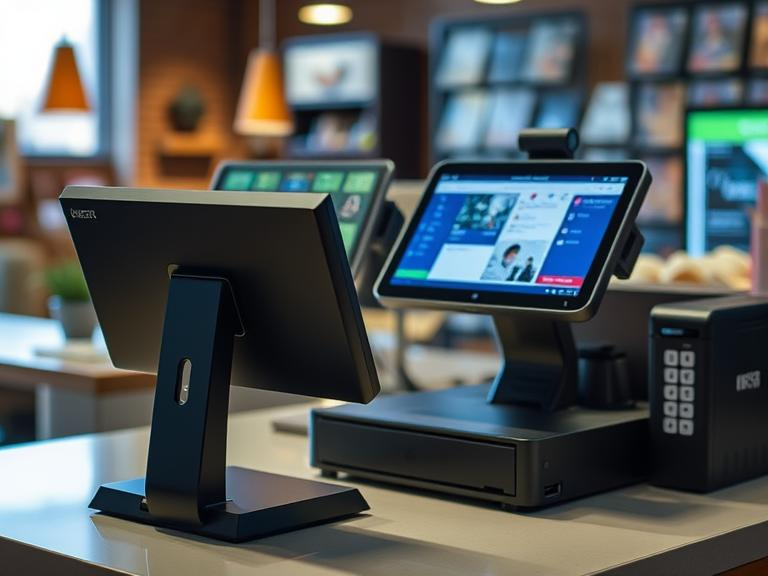
How POS Systems Help with Customer Retention: An In-Depth Guide
Running a retail or hospitality business isn’t just about making sales—it’s about keeping customers coming back. Retaining customers leads to higher profitability, brand loyalty, and long-term growth. Studies show that repeat customers spend up to 67% more than new ones, making customer retention a critical focus for businesses of all sizes.
A POS system benefits retailers by offering tools that improve customer experience, track shopping habits, and facilitate reward programs. By using POS analytics for customer insights, businesses can create tailored promotions and loyalty incentives to strengthen customer relationships. Let’s explore how retail POS system advantages can turn one-time buyers into lifelong customers.
Why Customer Retention Matters More Than Ever
The High Cost of Customer Churn
Customer acquisition costs are significantly higher than retention costs. Losing a customer means losing their potential lifetime value. Studies show that increasing customer retention by just 5% can boost profits by up to 95%.
The Power of Repeat Customers
Repeat customers are more likely to:
- Spend more per transaction
- Try new products
- Recommend your business to others
Retailers that use POS data to improve customer retention strategies can personalize their marketing, offer better service, and create a seamless shopping experience.
How POS Systems Improve Customer Retention
Personalized Shopping Experience
A POS system tracks customer purchases, helping businesses understand buying habits. With this data, businesses can:
- Send personalized promotions
- Recommend relevant products
- Offer birthday or milestone rewards
Example:
A grocery store using BIM POS analyzed purchase data and found an increase in organic product sales. They started sending special discounts to customers who frequently purchased organic goods, increasing customer retention.
Loyalty Programs & Reward Systems
Loyalty programs are one of the best customer retention strategies in retail. A POS system can automate rewards and track customer points seamlessly.
Benefits of Integrating Loyalty Programs with POS:
- Customers earn points for each purchase
- Tiered rewards keep customers engaged
- Automated discounts encourage repeat visits
Example:
A coffee shop implemented a POS customer loyalty program using POS27. Customers earned points for every purchase, redeemable for free drinks. Within six months, their repeat customer rate grew by 35%.
Faster & More Convenient Checkout
Long checkout lines frustrate customers. A POS system benefits retailers by making transactions quick and efficient.
POS System Features That Enhance Customer Loyalty:
- Contactless payments
- Self-checkout kiosks
- Mobile POS options
Example:
A retail store using Zahabi reduced checkout times by 40%, leading to increased customer satisfaction and repeat business.
Smart Marketing with POS Data
POS analytics for customer insights allows businesses to:
- Send targeted promotions via SMS and email
- Offer discounts to customers who haven’t visited in a while
- Identify peak shopping times for sales events
Example:
A clothing retailer using Zahabi noticed that sales spiked on weekends. They launched a “Friday Flash Sale” campaign via text message, increasing foot traffic by 25%.
Inventory Management & Product Availability
Running out of popular products frustrates customers. POS software features for small business track inventory in real-time, ensuring stock levels are maintained.
Benefits of Integrated POS Systems for Repeat Business:
- Prevents out-of-stock situations
- Tracks customer demand for specific products
- Allows for automated restocking alerts
Example:
A bakery using BIM POS noticed a high demand for a specific pastry on Saturdays. By adjusting inventory and promoting it via SMS, they doubled sales in weeks.
Customer Feedback Collection
Feedback helps businesses improve. Many POS solutions for customer engagement allow businesses to:
- Collect feedback at checkout
- Send follow-up surveys
- Track customer sentiment trends
Example:
A restaurant using POS27 integrated customer feedback surveys, helping them improve service and increase positive reviews.
Case Studies: Real-World Success Stories
Loyalty Program Success
A local café using POS27 saw a 35% increase in repeat customers by implementing a loyalty program with automatic point tracking.
Data-Driven Marketing Boosts Sales
A boutique using BIM POS found that 30% of their customers preferred online shopping. They launched exclusive online discounts, increasing digital sales by 20% in three months.
How to Choose the Right POS System for Customer Retention
Key Features to Look For:
- Loyalty Program Integration – Tracks and rewards repeat customers
- Customer Data & Analytics – Provides insights into shopping behavior
- Marketing Automation – Enables email/SMS promotions
- Inventory Management – Prevents stock shortages
Best POS Systems for Small Businesses:
- POS27 – Ideal for loyalty programs and analytics
- BIM POS – Best for inventory tracking and customer insights
- Zahabi – User-friendly with built-in marketing tools
The Future of POS Systems in Customer Retention
AI-Driven Personalization
Future POS systems will use AI to:
- Suggest products based on customer history
- Automate personalized discounts
- Predict shopping trends
Blockchain-Based Loyalty Programs
Retailers are exploring blockchain for secure, fraud-proof loyalty programs.
Omnichannel Shopping Experience
Modern POS systems will unify online and in-store shopping, allowing customers to earn and redeem rewards across all platforms.
Conclusion
A POS system is more than a sales tool—it’s a customer retention powerhouse. Businesses that invest in POS solutions for customer engagement see better customer relationships, increased repeat sales, and higher profits.
Looking to improve customer retention? Explore BIM POS, POS27, or Zahabi. These systems provide the tools needed to turn first-time shoppers into lifelong customers.
FAQs
- How does a POS system help with customer retention?
A POS system tracks customer purchases, automates loyalty rewards, and personalizes offers to encourage repeat visits and long-term loyalty. - What are the best POS system benefits for retailers?
Retailers can use POS systems for faster checkouts, better inventory management, customer insights, and loyalty program integration to increase sales. - Why are POS customer loyalty programs important?
Loyalty programs reward repeat customers with discounts or points, making them more likely to return and spend more over time. - Can POS analytics improve customer engagement?
Yes! POS analytics provide insights into shopping trends, allowing businesses to create targeted promotions and improve customer satisfaction. - What features should I look for in a POS system for customer retention?
Look for loyalty program integration, customer data tracking, real-time analytics, and marketing automation tools to keep shoppers coming back.

