
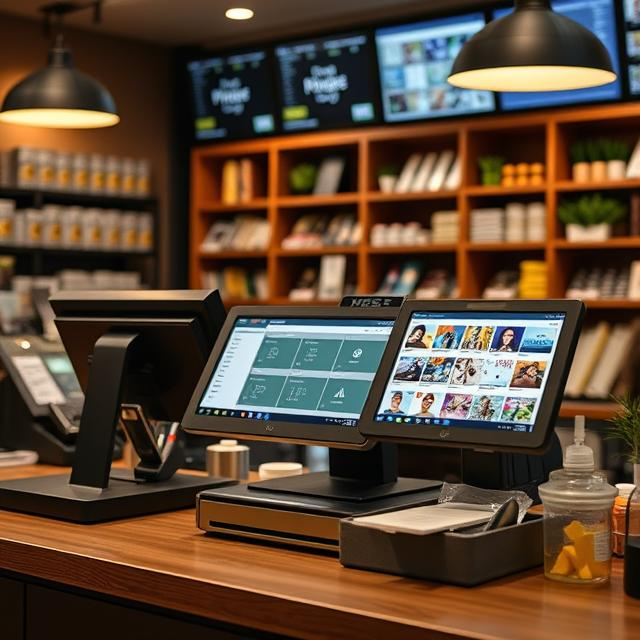
When your POS system acts up, it can cause a real mess. Sales stop. Customers get annoyed. Staff scramble to fix things without knowing what to do first. That’s why learning a few quick troubleshooting tricks can save you a lot of headaches. This guide will walk you through simple ways to fix common problems, even if you aren’t a tech expert.
You don’t need fancy tools or special skills. You just need a little patience and a simple plan. Let’s get you ready to handle any POS problem with confidence.
Quick First Steps Before Deep Troubleshooting
Before digging around and guessing what’s wrong, you should always do a few quick checks first.
- Look at the power. Is everything plugged in right? Check cords, outlets, and power strips.
- Restart your POS. Many times, turning it off and on fixes small problems.
- Check the internet. If your system runs on Wi-Fi or wired internet, make sure it’s working fine.
- Confirm login details. Staff might be using the wrong password without realizing it.
- Decide when it’s bigger than you. If screens stay black, devices smell funny, or you hear weird sounds, call a pro immediately.
Starting simple can solve a lot more than you think.
Troubleshooting Common POS Hardware Issues
Hardware means the physical parts you can touch, like screens, printers, and card readers. When these pieces act up, here’s how to fix them.
Touchscreen or Monitor Not Responding
Sometimes a screen freezes or won’t react when you touch it. Here’s what you can do:
- Wipe it gently. Dirt, grease, or dust can block touches.
- Check all cables. Loose plugs cause more trouble than broken parts.
- Try a different port. If the cable is good but still not working, use another spot on the device.
- Replace only if needed. If nothing works, it may be time for a new screen.
Receipt Printer Problems
A printer that refuses to work is super annoying, especially with a line of customers waiting. Try these steps:
- Look for paper jams. Open the printer and clear any stuck paper.
- Check if it’s offline. Go into the POS settings and make sure the printer is connected.
- Switch the paper roll. Make sure you’re using the right thermal paper if needed.
- Replace ink if needed. Some printers still use ink ribbons that can run out.
A working printer keeps things moving, so fixing these little issues fast is a huge help.
Card Reader or Payment Terminal Errors
Payment terminals cause panic when they stop working. Fix them fast with these tricks:
- Unplug and plug back in. It sounds simple, but it works a lot.
- Restart the reader. Find the small restart button or hold the power button.
- Clean the chip slot. Dirt inside can make cards fail to read.
Don’t be afraid to swap terminals between counters if one breaks down during busy hours.
Cash Drawer Won’t Open
When cash drawers stick, you might think it’s jammed. Here’s how to fix it:
- Check the cable. It must be plugged into the right spot, often the receipt printer.
- Use the emergency release. Most drawers have a tiny lever under them.
- Check the software settings. The drawer might be set to open only after a sale is finished.
Knowing how to pop open a drawer safely can save your day.
Troubleshooting Common POS Software Issues
Software problems happen inside the system. They don’t always show up right away but can ruin the whole day if left alone.
POS App Freezing or Crashing
Apps crash when they get overloaded or outdated. Here’s how to fix it:
- Update the app. New updates fix old bugs.
- Clear old files. Some apps let you clear cached data, which helps them run faster.
- Reinstall if needed. If nothing else works, delete and reinstall the app.
Running the newest version keeps the system quick and ready.
Login or User Access Problems
Sometimes staff can’t get in, and the panic starts. Fix it by:
- Resetting passwords. Quick and easy fix most of the time.
- Checking user roles. Someone might not have permission for certain actions.
- Checking your subscription. Some systems lock you out when payments fall behind.
Keep a master admin login written down somewhere safe for emergencies.
Pricing or Inventory Display Errors
If items ring up wrong or inventory looks off, don’t panic.
- Sync the database. Press “refresh” or sync on the back office dashboard.
- Double-check settings. Mistakes often happen during price changes or inventory updates.
- Call support if needed. Some problems can only be fixed on the server side.
Fast fixes here keep customers happy and trust high.
Networking and Connectivity Troubles
No network, no sales. Fix internet-based problems fast using these easy checks.
POS System Cannot Connect to Wi-Fi
Wi-Fi issues happen all the time. Fix them with these steps:
- Reconnect to the network. Make sure you’re on the right one.
- Restart the router. Turn it off, wait 30 seconds, then turn it back on.
- Switch to a wired connection. If Wi-Fi keeps dropping, plug into the router with an Ethernet cable.
Stable internet makes a huge difference.
Payment Processing Delays or Failures
When card payments fail, it’s often the payment processor’s fault, not yours.
- Check payment gateway status online. Sometimes their servers crash.
- Look for system-wide outages. If everyone’s down, you can’t fix it yourself.
- Use offline mode. Some POS systems store sales locally and send them later.
Customers care more about getting their stuff than about technical reasons.
Peripheral Devices Troubleshooting
Peripheral devices help with extras like scanning or weighing. When they stop, here’s how you fix them.
- Barcode scanner not working? Clean the lens and recheck the cable.
- Scale not reading correctly? Reset the calibration following the device manual.
- Customer display frozen? Restart it and check for loose wires.
Little fixes for little tools keep the whole store running smooth.
When to Escalate: Knowing When DIY Isn’t Enough
Sometimes trying to fix things yourself will only make it worse. Here’s how you know it’s time to call an expert:
- Strange smells or sounds from any device
- Visible physical damage like cracked screens or broken ports
- Repeated crashes even after basic troubleshooting
- Systems offline for more than 30 minutes
Before calling support, write down:
- What you tried already
- Error messages you saw
- What happened right before the system failed
Good notes help technicians fix your problems faster.
Preventive Maintenance Tips for POS Systems
Fixing things early is always better than fixing things late. Use these simple habits:
- Update software every month. New updates fix security holes and bugs.
- Clean screens and devices weekly. Use a microfiber cloth and a little patience.
- Check cables every month. Look for frayed wires or loose ports.
- Back up your system. Store a copy of important data on a flash drive or cloud service.
A few minutes each week saves you hours of trouble later.
Bonus: Must-Have POS Troubleshooting Kit
Be ready for anything with a small troubleshooting kit at your counter. Here’s what you should have:
- Spare power cables
- USB hubs and extra charging cords
- Flash drive with backup installers and important settings
- List of support phone numbers taped inside a drawer
- A simple printed checklist for common problems and fast fixes
Prepared teams bounce back faster when things go wrong.
Conclusion
POS problems don’t have to shut you down. A few basic checks, a little patience, and knowing when to call for help make a huge difference. Keeping your system healthy and your staff ready gives you a major advantage every day.
FAQs
- What should I do if my POS system is not turning on?
- First, check the power source and connections. If everything seems fine, try rebooting the system or checking for any software updates that may be required.
- How can I fix a slow POS system?
- Try clearing the cache, closing unnecessary apps or programs, and ensuring your system is up to date. If the issue persists, check for any hardware malfunctions.
- My POS system isn’t accepting payments. What can I do?
- Ensure your payment gateway is properly configured, check the connection, and verify that your card reader or terminal is working correctly.
- Why is my POS system freezing during transactions?
- Freezing can be caused by software bugs or hardware issues. Try restarting the system, checking for software updates, or reinstalling the POS software if necessary.
- How can I resolve an inaccurate sales report in my POS system?
- Double-check the settings, ensure proper data entry, and look for any possible updates or bugs in your POS software that might affect reporting accuracy.

